In an age where streaming content is king, the Amazon Fire TV Stick has emerged as a powerful tool for accessing a plethora of entertainment options. One of its standout features is the ability to mirror content from your smartphone, tablet, or computer. This guide will explore the ins and outs of mirroring to the Fire TV Stick, its benefits, and how you can unlock its full potential for an enhanced viewing experience.
Understanding the Basics of Mirroring
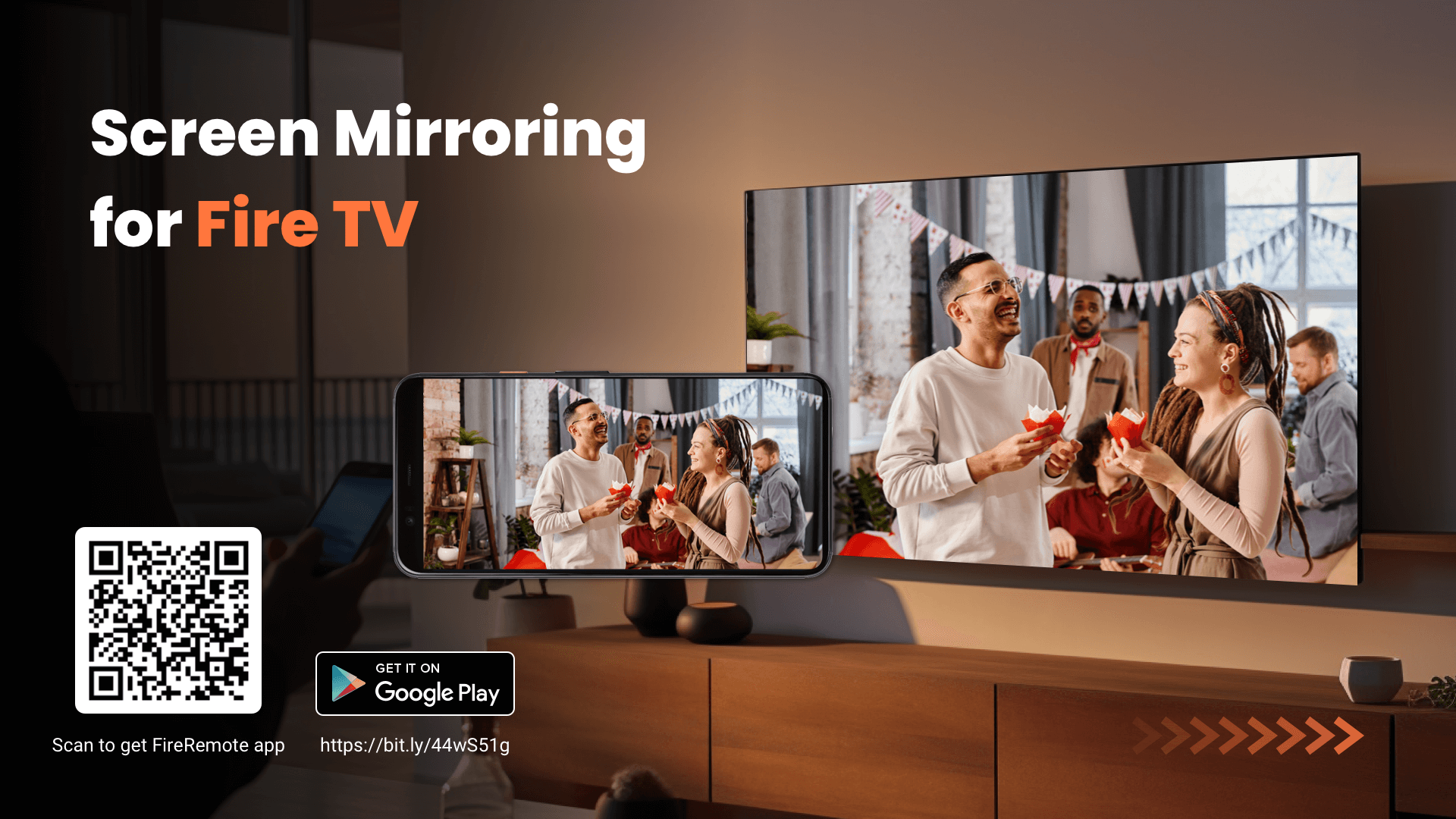
Mirroring, also known as screen sharing, allows you to display the screen of one device onto another. In the case of the Fire TV Stick, it means projecting the screen of your mobile device or computer onto your TV. This functionality can be particularly useful for:
- Presenting slideshows or documents during meetings.
- Sharing photos and videos with friends and family.
- Playing games on a larger screen.
- Streaming content from apps that may not be available on the Fire TV platform.
Setting Up Your Fire TV Stick for Mirroring

To get started with mirroring on your Fire TV Stick, you’ll first need to ensure that your device is set up correctly. Here’s a step-by-step guide:
- Connect Your Fire TV Stick: Plug the Fire TV Stick into an HDMI port on your TV and power it on. Ensure it’s connected to the same Wi-Fi network as your smartphone or computer.
- Enable Mirroring: Navigate to the ‘Settings’ menu on your Fire TV Stick, select ‘Display & Sounds,’ and then choose ‘Enable Display Mirroring.’
- Access the Mirroring Feature on Your Device: For Android devices, swipe down from the top of the screen to access the Quick Settings menu, then tap on ‘Screen Mirroring’ or ‘Cast.’ For iOS devices, open ‘Control Center’ and select ‘Screen Mirroring.’
- Select Your Fire TV Stick: From the available devices, choose your Fire TV Stick to start mirroring.
Mirroring from Android Devices

Android devices generally have built-in support for mirroring. Here’s how to do it:
- Open Settings: Go to your device’s settings and look for ‘Connected devices’ or ‘Connections.’
- Enable Cast: Tap on ‘Cast’ or ‘Screen Mirroring’ and ensure that your Fire TV Stick is visible.
- Select Your Fire TV Stick: Choose your Fire TV Stick from the list of devices to initiate mirroring.
Mirroring from iOS Devices
iOS users can easily mirror their screens using the built-in AirPlay feature. Here’s how:
- Access Control Center: Swipe down from the upper right corner of your iPhone or iPad.
- Tap Screen Mirroring: Select ‘Screen Mirroring’ and look for your Fire TV Stick.
- Enter AirPlay Code: If prompted, enter the code displayed on your TV to establish a connection.
Mirroring from Windows PCs
Windows users can also mirror their screens to the Fire TV Stick. Here’s a simplified process:
- Open Action Center: Click on the Action Center icon in the taskbar (bottom-right corner).
- Select Connect: Click on ‘Connect’ to search for devices.
- Choose Your Fire TV Stick: Select your Fire TV Stick from the list to start mirroring.
Benefits of Using Mirroring with Fire TV Stick

Mirroring to your Fire TV Stick can offer several advantages:
- Enhanced Viewing Experience: Enjoy movies, videos, and games on a larger screen.
- Convenience: Stream content that may not be available on the Fire TV Stick.
- Multi-Device Support: Compatible with a range of devices, including smartphones, tablets, and computers.
- Easy Sharing: Perfect for sharing photos and presentations with a group.
Case Studies: Real-World Applications of Mirroring
Mirroring has found diverse applications across various fields. Here are a couple of case studies:
Case Study 1: Business Presentations

A small marketing firm utilized the Fire TV Stick’s mirroring capabilities for client presentations. By mirroring their laptops, they could easily showcase their latest marketing strategies and analytics on a larger screen, facilitating better engagement with their clients. The convenience of not having to connect cables boosted their efficiency and professionalism.
Case Study 2: Family Gatherings
During family gatherings, a family used the mirroring feature to share vacation photos and videos directly from their smartphones onto the big screen. This not only sparked conversations but also made everyone feel included in the shared experiences. The ease of access to their media helped create memorable moments.
Common Issues and Troubleshooting Tips
While mirroring is generally straightforward, users may encounter issues. Here are some common problems and troubleshooting tips:
- Device Not Found: Ensure both your Fire TV Stick and the mirroring device are on the same Wi-Fi network.
- Lag or Disconnection: Check your Wi-Fi connection strength. A weak signal can cause interruptions.
- Audio Issues: Make sure the audio output settings are correct on your mirroring device.
The Amazon Fire TV Stick, with its mirroring capabilities, opens up a world of possibilities for entertainment and productivity. By learning how to effectively use this feature, you can enhance your viewing experience, share content easily, and make the most out of your device. Whether for personal enjoyment or professional use, mastering mirroring on your Fire TV Stick can truly unlock its full potential. As technology continues to evolve, embracing these features can keep you ahead in the digital content landscape.

